Slots
Slots are named regions in the UI where buttons, controls, and panels can be placed. The slot system enables responsive layouts by allowing elements to appear in different locations at different breakpoints.
Slot Map
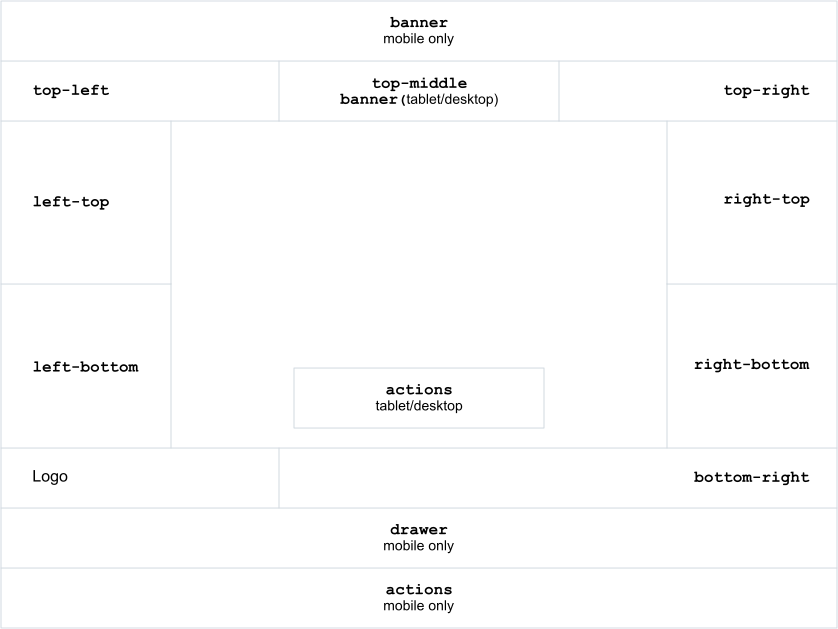
header sits above the top row of buttons/controls, at every breakpoint, pushing everything below it down. Use it for content that needs to take over the very top of the screen — banner can only sit below the row.
banner sits below the top row of buttons/controls, at every breakpoint — full width by default, pushing the left and right side columns down further, or centred between them at its preferred width when there's enough room. On mobile it's always full width, regardless of available room.
drawer only renders as a drawer on mobile — at tablet and desktop breakpoints, panels assigned to drawer automatically fall back to left-top.
Available Slots
| Slot | Typical use |
|---|---|
header | Full width, above the top row, pushing everything below it down. Typically used for an expanded search bar on mobile |
top-left | Buttons and controls. Typically the search control on tablet and desktop |
top-middle | Buttons and controls for optional actions |
top-right | Buttons and controls. Typically the search button on mobile |
banner | Tips, notifications, and context messages. Sits below the top row, full width — or centred between the left/right side columns when there's room |
left-top | Panels stacked on the left side (upper) |
left-bottom | Panels stacked on the left side (lower) |
right-top | Panels stacked on the right side (upper) |
right-bottom | Panels stacked on the right side (lower) |
bottom-right | Buttons and controls in the bottom-right corner |
middle | Overlays centred on the map (e.g. loading screens or keyboard controls). Typically modal, as these will obscure map content |
drawer | Full-width drawer below the map — mobile only, falls back to left-top on tablet/desktop |
actions | Full width at the bottom of the screen on mobile. On tablet or desktop, a floating control at the bottom of the map area |
side | Persistent side panel alongside the map. Typically a custom menu |
Slot Eligibility
Not all element types can use every slot. The table below shows which slots are available for each element type.
| Slot | Buttons | Panels | Controls |
|---|---|---|---|
header | ✓ | ✓ | |
top-left | ✓ | ✓ | |
top-middle | ✓ | ||
top-right | ✓ | ✓ | |
banner | ✓ | ✓ | |
left-top | ✓ | ✓ | |
left-bottom | ✓ | ✓ | |
right-top | ✓ | ✓ | |
right-bottom | ✓ | ✓ | |
bottom-left | ✓ | ||
bottom-right | ✓ | ✓ | |
middle | ✓ | ✓ | |
drawer | ✓ | ✓ | |
actions | ✓ | ✓ | |
side | ✓ |
Usage
Specify a slot in the breakpoint configuration for buttons, controls, or panels:
{ mobile: { slot: 'drawer' }, tablet: { slot: 'left-top' }, desktop: { slot: 'left-top' }}Different slots can be used at each breakpoint, allowing an element to reposition itself as the layout changes.
NOTE
At tablet and desktop breakpoints, panels assigned to drawer automatically fall back to left-top.
Ordering
Multiple elements can share the same slot. Panels and controls render in the order they were registered. For buttons, this can be overridden using the order property in the breakpoint configuration.
- No order (default) — button renders in registration order.
- Positive integer — position hint (1-based). A button with
order: 1will appear first;order: 2second, and so on.
{ desktop: { slot: 'left-top', order: 1 }}NOTE
Order values are clamped to the valid range. If you specify an order larger than the number of buttons in the slot, the button is placed last.
When buttons belong to a group, order controls position within the group. The group itself is positioned in the slot using group.slotOrder.
Button-Adjacent Panels
A panel can be configured to appear adjacent to the button that opened it by using a button-adjacent slot name:
{ desktop: { slot: 'map-styles-button' }}The slot name is the button's id converted to kebab-case, followed by -button. For example, a button with id: 'mapStyles' uses the slot map-styles-button. The panel will be positioned next to the triggering button in the DOM.
Panel-Injected Controls
A control can render inside another panel's body — including a panel registered by a different plugin — by targeting a panel-body slot name:
{ desktop: { slot: 'map-styles-panel', order: 2 }}The slot name is the panel's id converted to kebab-case, followed by -panel. For example, a panel with id: 'mapStyles' uses the slot map-styles-panel. The panel's own content and every control targeting it are ordered together using the standard order rules above — the panel's own content counts as an unordered item unless it opts into an explicit position.
Rendering is flat: the framework doesn't wrap injected controls in any extra markup or headings. Each control's render component is responsible for its own internal structure — a control contributing a single button needs no heading, while one contributing a small form might reasonably wrap itself in its own <section>.
NOTE
Only supported by panels with a render component — a panel using static html can't host injected controls. order is only respected for controls with a render component; controls registered with static html via addControl() always render after everything else, in registration order.
Panel Tabs
A panel's content — its own, and anything injected into it — can be split into tabs by giving items a tab:
{ desktop: { slot: 'map-styles-panel', tab: 'Styles', order: 1 }}Two items land in the same tab by giving it the same tab string (compared case/whitespace-insensitively). Items with no tab share one implicit tab, labelled with the panel's own label. This makes adding a tab and adding to an existing one the same operation — whichever happens falls out of whether that name is already in use, with no separate step to register the tab itself.
Tabs only appear once this produces more than one distinct group — a panel with everything in one tab (or nothing tagged at all) renders exactly as it would without this section, flat, no tab strip. A tab's position among other tabs, and its displayed label, both come from whichever of its members ends up first once ordered by order — there's no separate property for ordering or naming a tab itself.
// Two plugins contributing to the same panel, each in its own tabmanifestA.controls = [{ id: 'styles', desktop: { slot: 'map-styles-panel', tab: 'Styles' } }]manifestB.controls = [{ id: 'sizes', desktop: { slot: 'map-styles-panel', tab: 'Map size' } }]NOTE
tab follows the same support as order — only respected for controls with a render component. A panel's own content can set tab too (see PanelDefinition), and a control can vary its tab per breakpoint like any other breakpoint property, so a panel can stay flat on mobile while tabbed on desktop.
Modal Panels
Setting modal: true in a panel's breakpoint config adds modal behaviour to the panel. Internally the panel is moved to a dedicated modal slot to ensure correct stacking order, but it is visually positioned to match its configured slot — for example, a button-adjacent panel will still appear next to its button — and gains a greyed-out backdrop, constrained keyboard focus, and other modal semantics.
{ desktop: { slot: 'map-styles-button', modal: true }}Only one modal panel can be visible at a time. If multiple modals are open, only the most recently opened one is shown.